

Connecting Scanners
+ CONNECT OTHER SCANNERS
- Sirona
- iTero
- Straumann
- Shinning
- Others
3Shape TRIOS
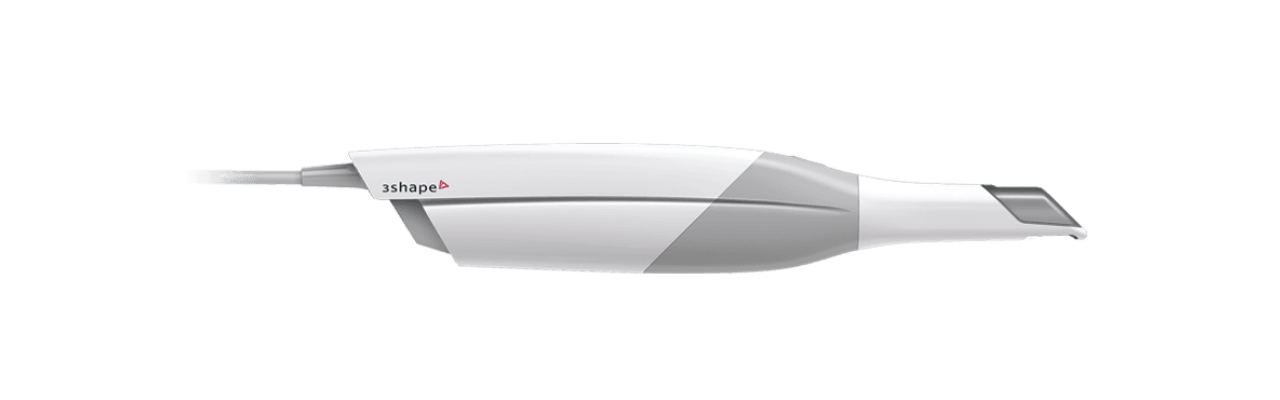
In order to send digital impressions from 3Shape TRIOS ® intraoral scanner to Spectrum Dental Lab, a connection between the scanner and us has to be established via 3Shape Communicate as following:
- Register for a 3Shape Communicate account via portal.3shapecommunicate.com/ login if you do not have one.
- Login to your 3Shape Communicate account via portal.3shapecommunicate.com/ login
- Click Connections on the navigation bar
- Click Add Connection button
- Enter [email protected] in the field and click Find
- Select “Spectrum Dental Lab” in the result. Enter any message you may have for us. If you have an account that you would like to attach to this 3Shape Communicate account, you can note it here. Click Connect.
- Once we approve your connection request, the status of Spectrum Dental Lab will change from “Waiting for approval” to “Active” on Connected Sites page
- Go to you TRIOS ® scanner, select Configure > Lab Connections. Select Communicate for External Connection Method. Click Refresh. Make sure that Spectrum Dental Lab appears in your Communicate list. (Note: you may have to Configure Communicate first if you have not setup your Communicate account on your scanner before)
You can also check out the 3Shape Communicate for dental clinic video for further illustration. We recommend you spend time browsing through 3Shape YouTube channel for video tutorials, tips and tricks on how to best utilise your Trios scanner.
Where technology meets artistry
Contact Information
Manchester Unity Building, 220 Collins St,
Level 7, Suite 708, Melbourne, VIC 3000
03 9650 4163
PRIVACY POLICY
© 2025 Spectrum Dental Lab. All rights reserved.
↑ BACK TO TOP